
Poweeer is built for people who want to stay active. Open Today on iPhone or Apple Watch to see how your training form and recovery are developing, how you started the morning, and what you feel ready to take on now. Tap any of those views to see the workouts, measurements and patterns behind it.
Here’s a full tour, from the first night you wear your Watch to the charts and workout tools you can use once you have a few weeks of data. I’ve included real readings from my own iPhone. The captions explain the German labels where they appear. Select any screenshot to see it at full size.
Power recovery is your main recovery window, usually during sleep. Poweeer finds it from heart rate and movement, grouping nearby recovery phases to estimate when it began and ended. It works with irregular sleep hours and helps the app identify your waking readings.
Getting started with Poweeer
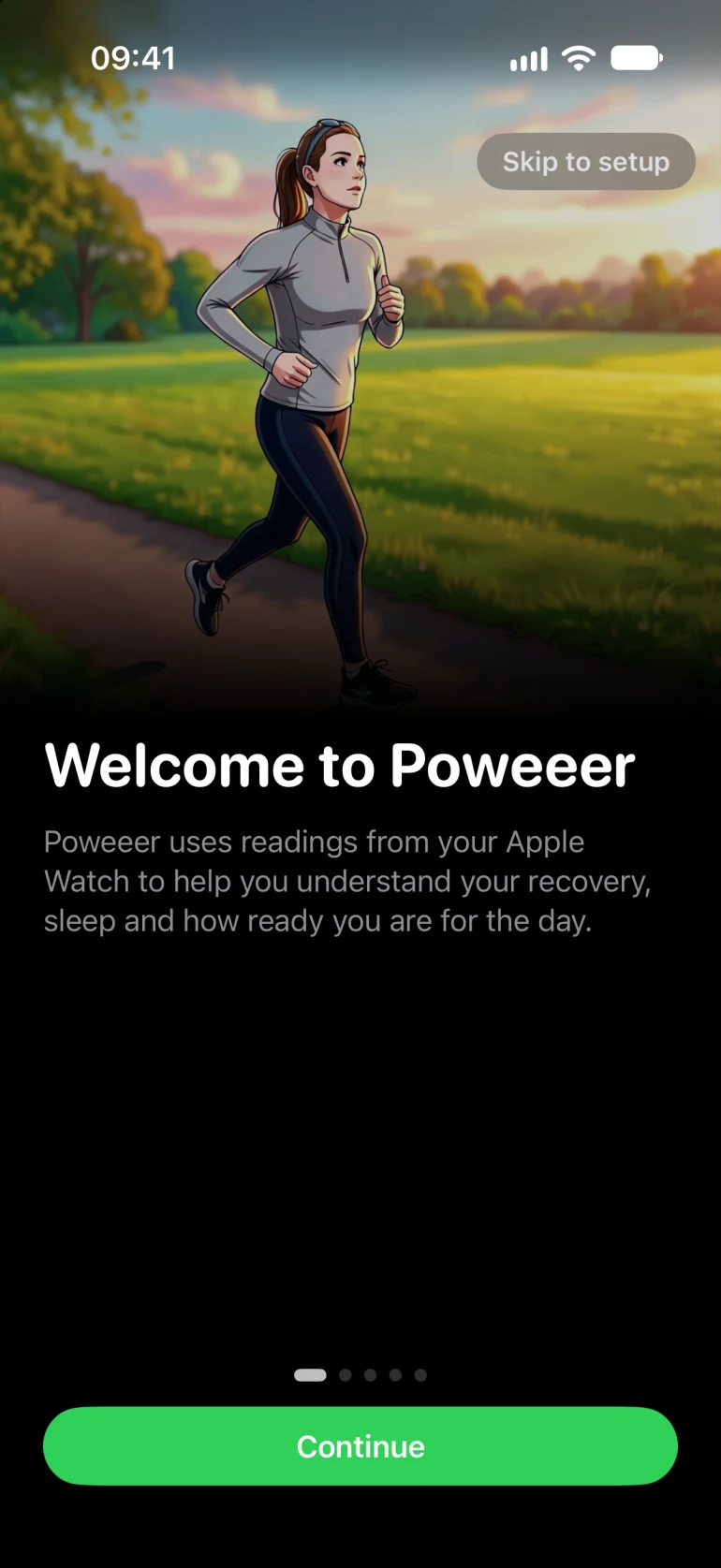
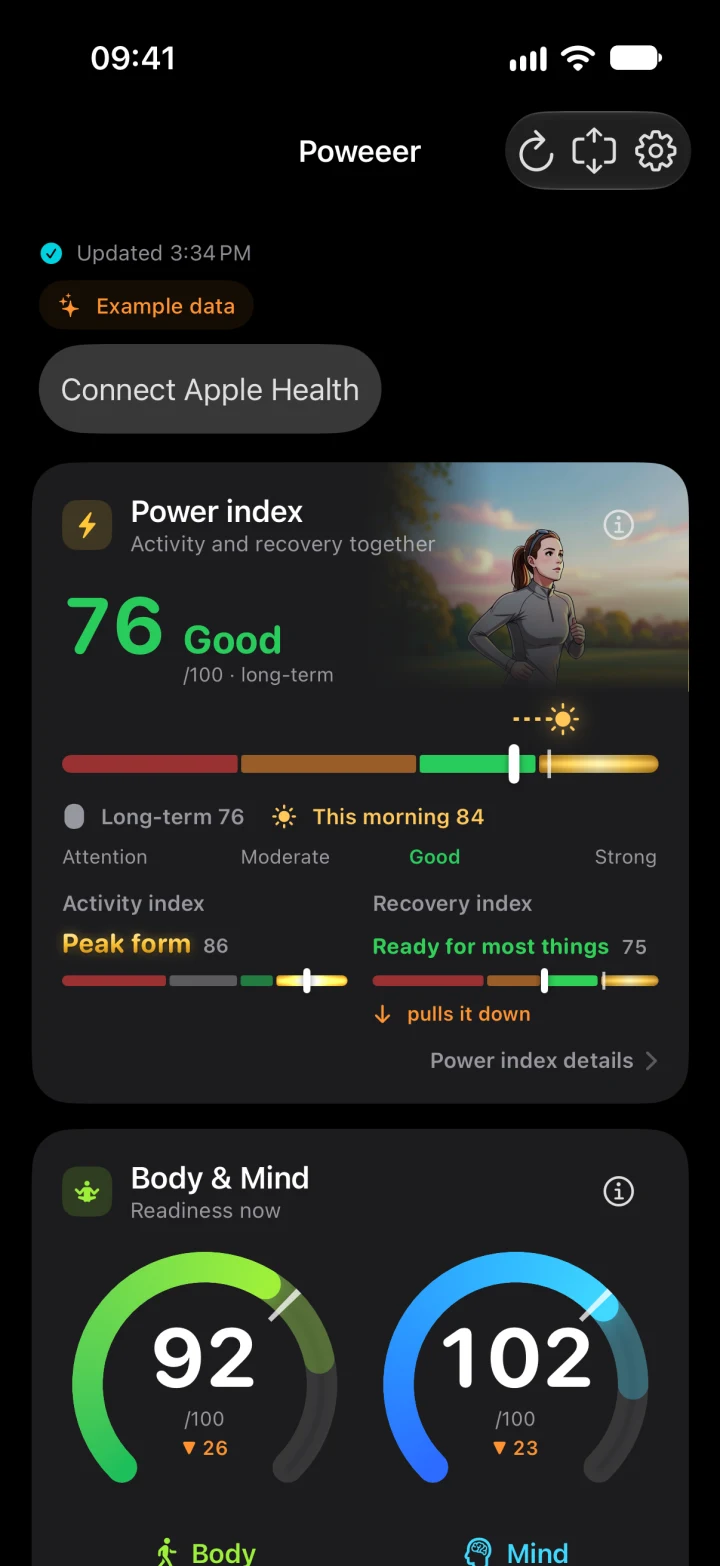
The first time you open Poweeer, the introduction explains what the main scores mean and which measurements they use. After you acknowledge the health information, you can connect Apple Health or choose Explore with example data and look around straight away. The example mode shows the same kinds of cards and charts you’ll see with your own readings.
To use your own data, connect Apple Health and choose what you want to share. The app uses heart rate, heart rate variability (HRV) and movement for its daily estimates. Workout data adds detail to the training views, and Apple sleep data adds a separate comparison on the Sleep page. You can change those permissions in Apple Health later.
Wear the Watch during the day and while you sleep so the app has both sides of the picture. The introduction sets an expectation of roughly three days with sleep data for the first set of scores. Some readings appear before the scores, and individual indexes and trends build up at different rates. A sport you rarely record will understandably take longer to develop its own history.
Today and the three indexes
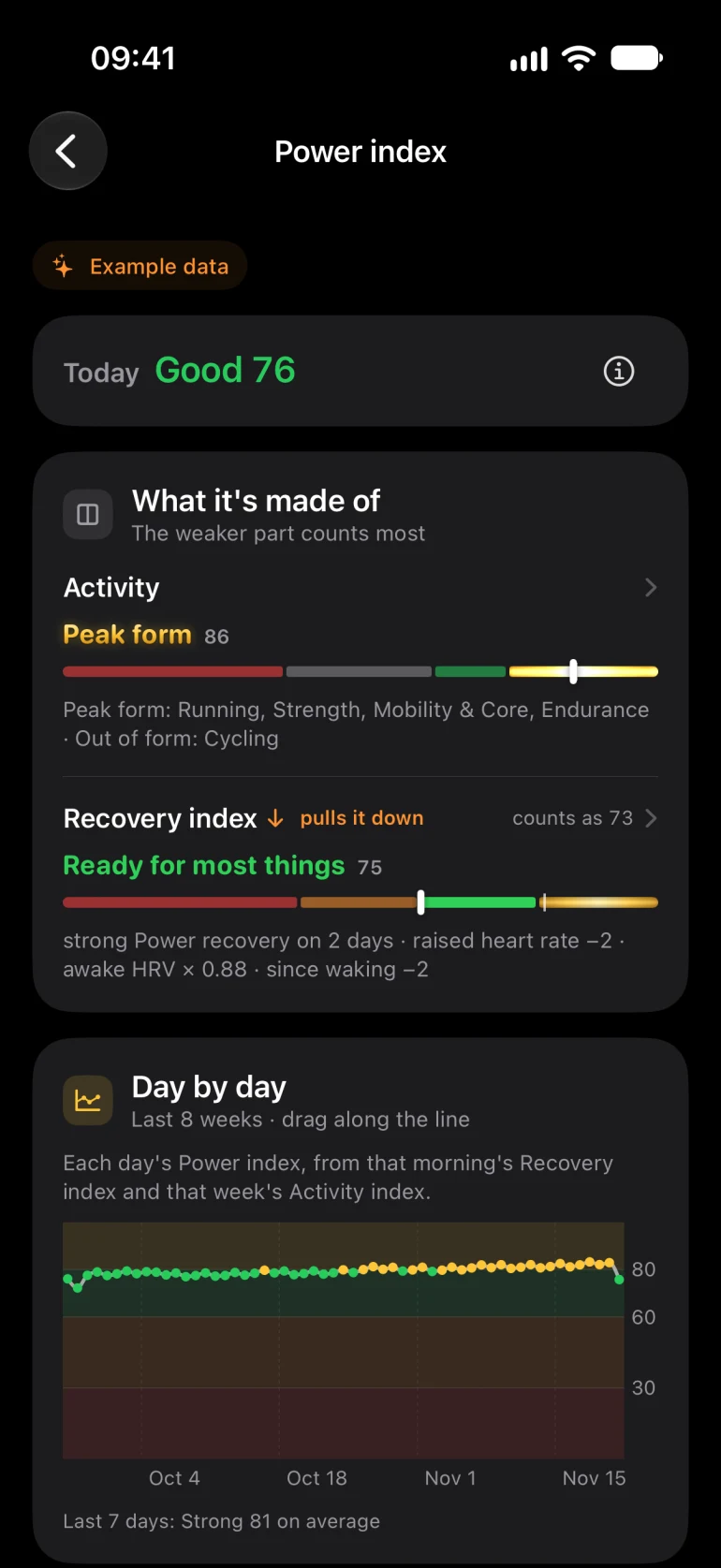
Today starts with the Power index, the main summary for people who want to be active. It brings your training form and recovery together so you can see how you’re doing overall within Poweeer. The same card shows its Activity and Recovery inputs. Lower down, Today shows current Body and Mind readiness, sleep debt and recent changes in individual readings. Tap a card for details or choose its information button for an explanation.
- Power index
- The large number reflects longer-term training form and recovery. It combines the Activity index with several mornings of recovery and gives more weight to the weaker component. The detail view shows which component is pulling the score down and how it has moved over time.
- Activity index
- Tracks how your training form develops. It combines the training load you’ve built up, how often and how hard you train, and performance results where enough data exists.
- Recovery index
- Summarizes how you’ve recovered over the past few days, drawing mainly on your overnight recovery. The detail screen shows the overnight measurements and the factors behind the result.
What the sun on the Power index means
The sun is the This morning marker. Its starting point is the average of Body and Mind at the end of your main Power recovery. That waking reading helps Poweeer suggest how much training to take on today. Activity form can temper a hard-workout suggestion. When recent training and recovery suggest possible overreaching, the sun can move lower and turn red to signal a more conservative start.
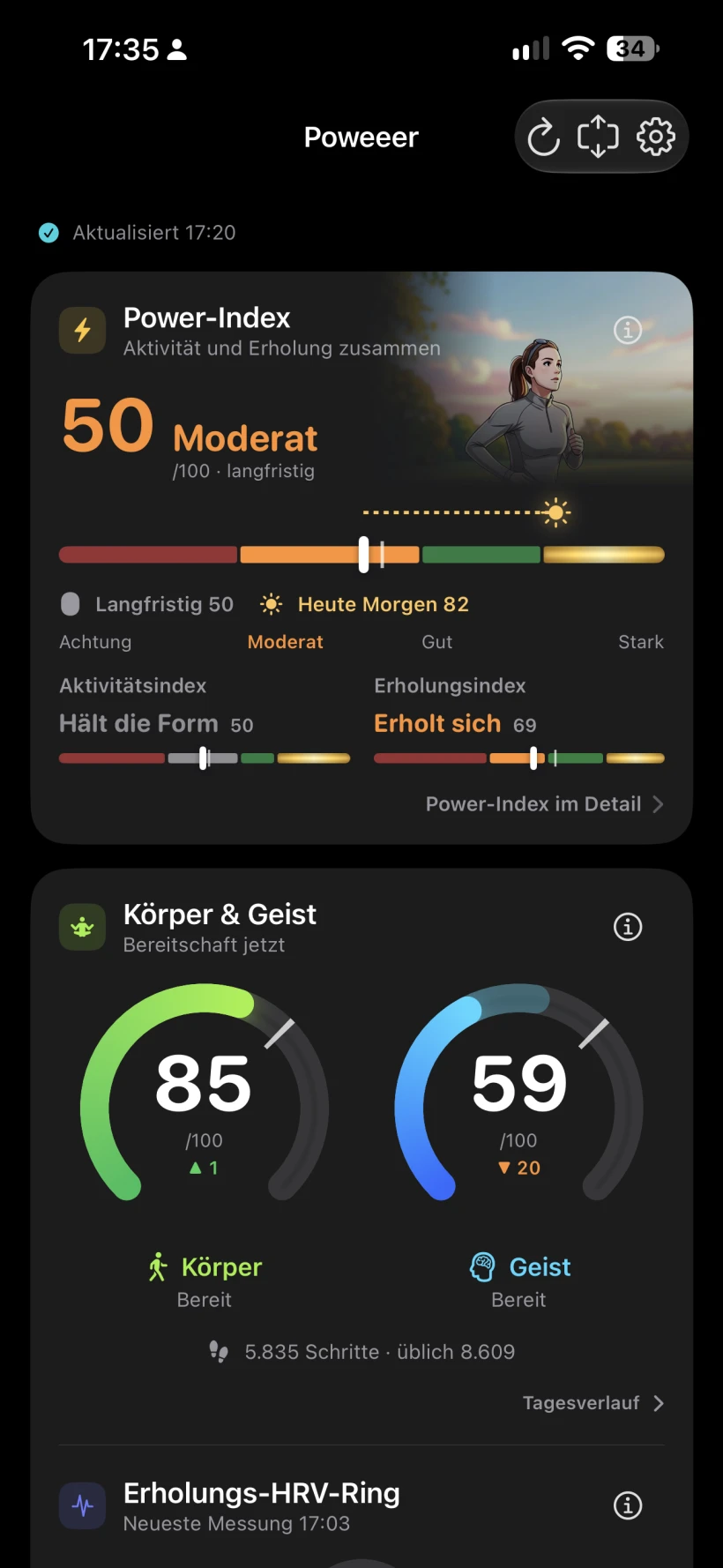
In my Today screenshot, Langfristig means long-term and reads 50. Heute Morgen means this morning and reads 82. Both fit on the same scale. They show that I started that morning at a stronger level than my longer-term Activity and Recovery picture.
Body and Mind show readiness right now
Body estimates how ready you are at this moment to do something physical, such as a run, a lifting session or a demanding walk. Mind estimates how ready you are for effort that needs concentration, such as writing, studying or getting through a long block of focused work. They’re two current estimates based on the latest readings. They can move in different directions during the same day.
A value of 100 means your usual good level on each scale. Think of the reading as an answer to a question about a particular task at a particular time. In my screenshot, Körper is Body at 85 and Geist is Mind at 59. The Day timeline shows how those estimates changed from waking to that moment.
What you can see at a glance
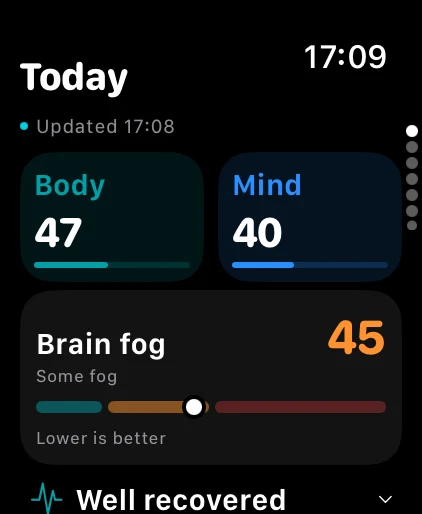
The Your values cards put key measurements in context. The arrow compares a value with the day before, and the dot summarizes its seven-day trend. You can open the details to see the actual readings and your usual range. The Watch’s Today view and at-a-glance complications give you a shorter version you can check on your wrist.
Poweeer’s scores and suggestions are wellness estimates. Use them as context alongside how you feel. For symptoms or medical decisions, seek advice from a healthcare professional.
Reading recovery, sleep and sleep debt
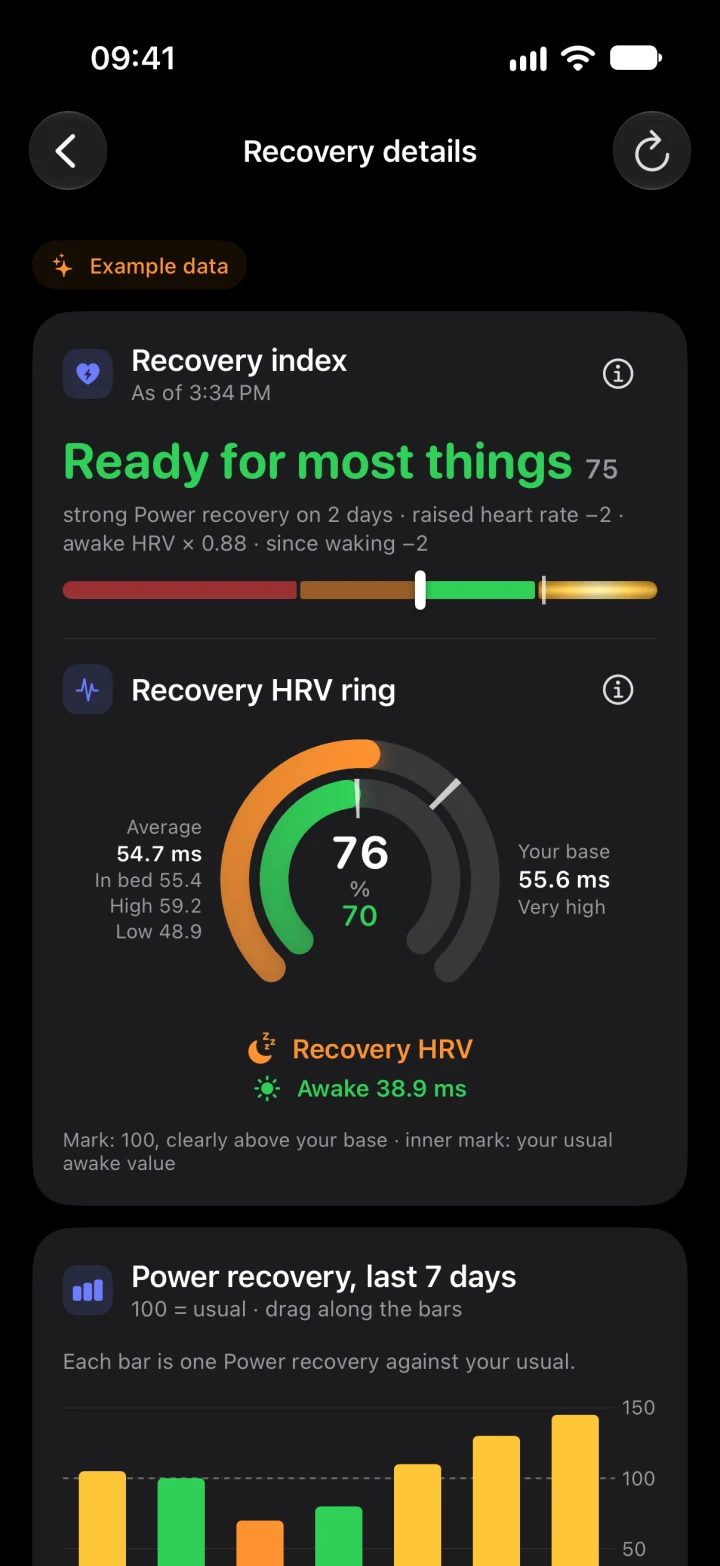
The Recovery details page opens up the headline score. The Recovery HRV ring shows how your heart rate variability compares with your personal baseline. The readings alongside it give you more context, including the overnight average and the awake reading where available. A seven-day chart shows individual Power recoveries against your usual level, so a stronger or weaker night has some history around it.
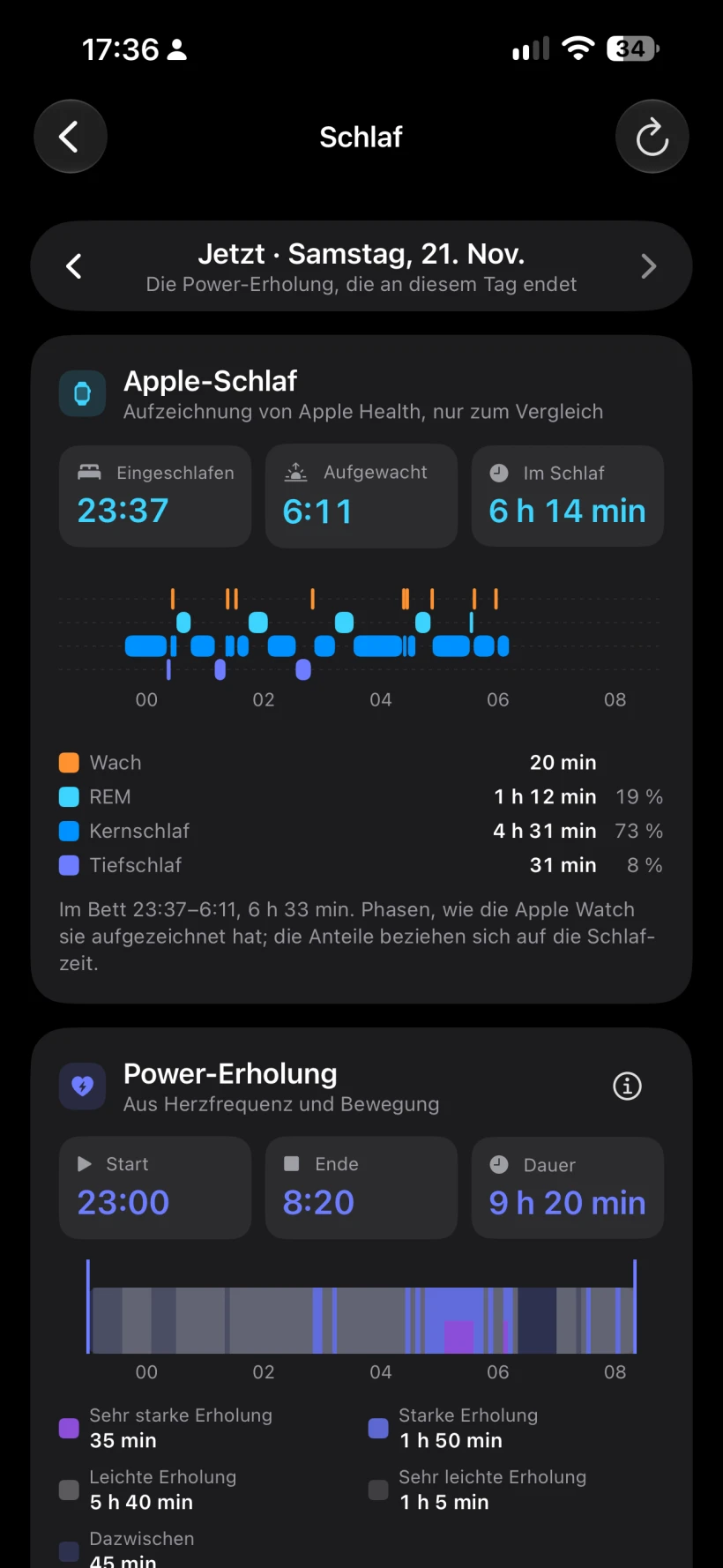
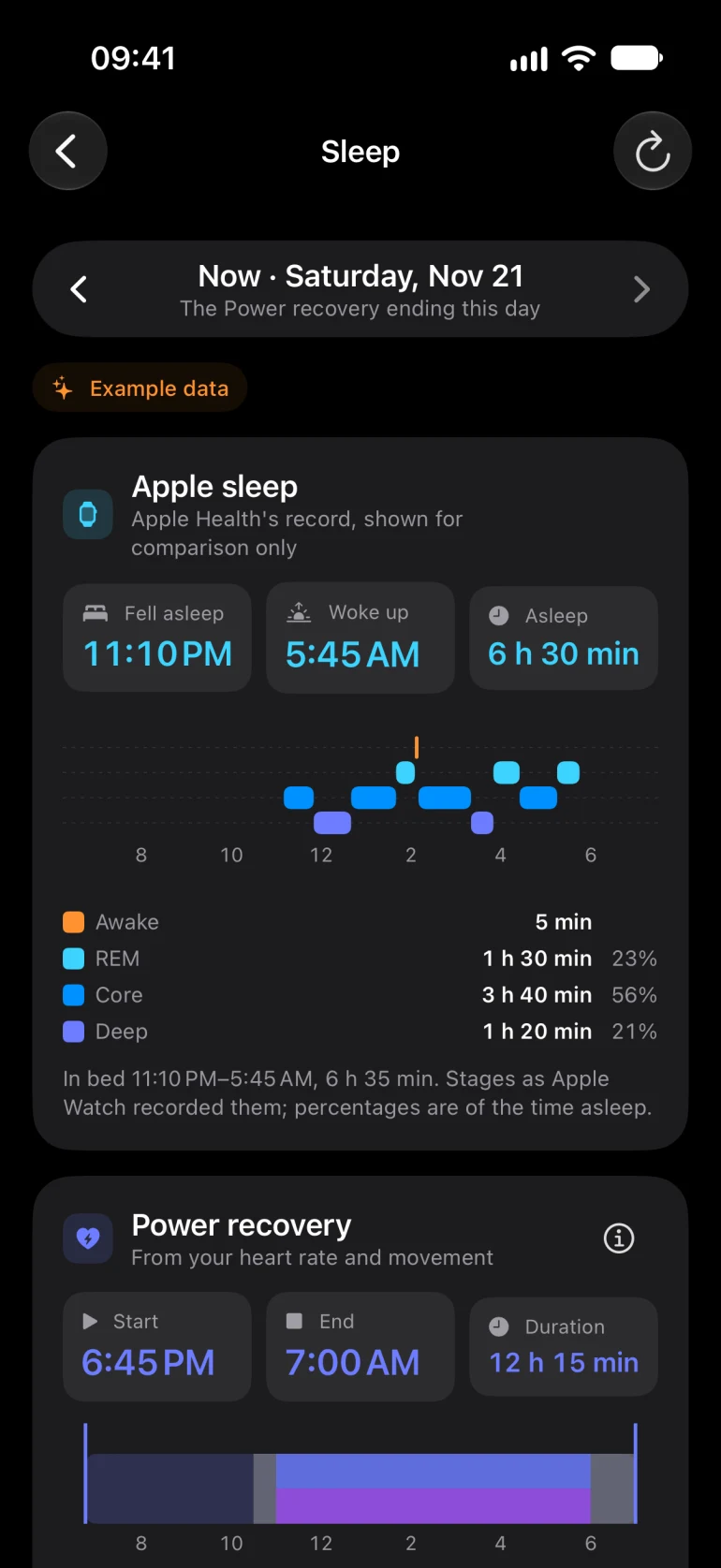
Power recovery is the name Poweeer gives to the overnight recovery period it estimates from your heart rate and movement. It shows when that period began and ended, how long it lasted and how much of the window it classified as stronger, lighter or interrupted recovery. Those phases capture differences within the window and feed the recovery and readiness views. The Sleep page also shows the separate Apple sleep record when available, including the sleep stages Apple recorded. You can compare the two at the same time on their charts. The Power recovery calculation uses its own signals, which is useful when you have irregular sleep hours or a night with no Apple sleep record.
Sleep debt is an estimate of how recent short or restless sleep may still affect you. It can help explain why an otherwise encouraging overnight reading comes with some lingering tiredness in the model. Sleep, recovery and readiness each answer a different question, so Today leaves those values visible alongside one another.
In my German Sleep screen, Apple-Schlaf is Apple sleep and Power-Erholung is Power recovery. Apple recorded 6 hours and 14 minutes asleep. Poweeer detected a recovery window of 9 hours and 20 minutes and shows which parts of that window had lighter or stronger recovery.
Following the day on a timeline
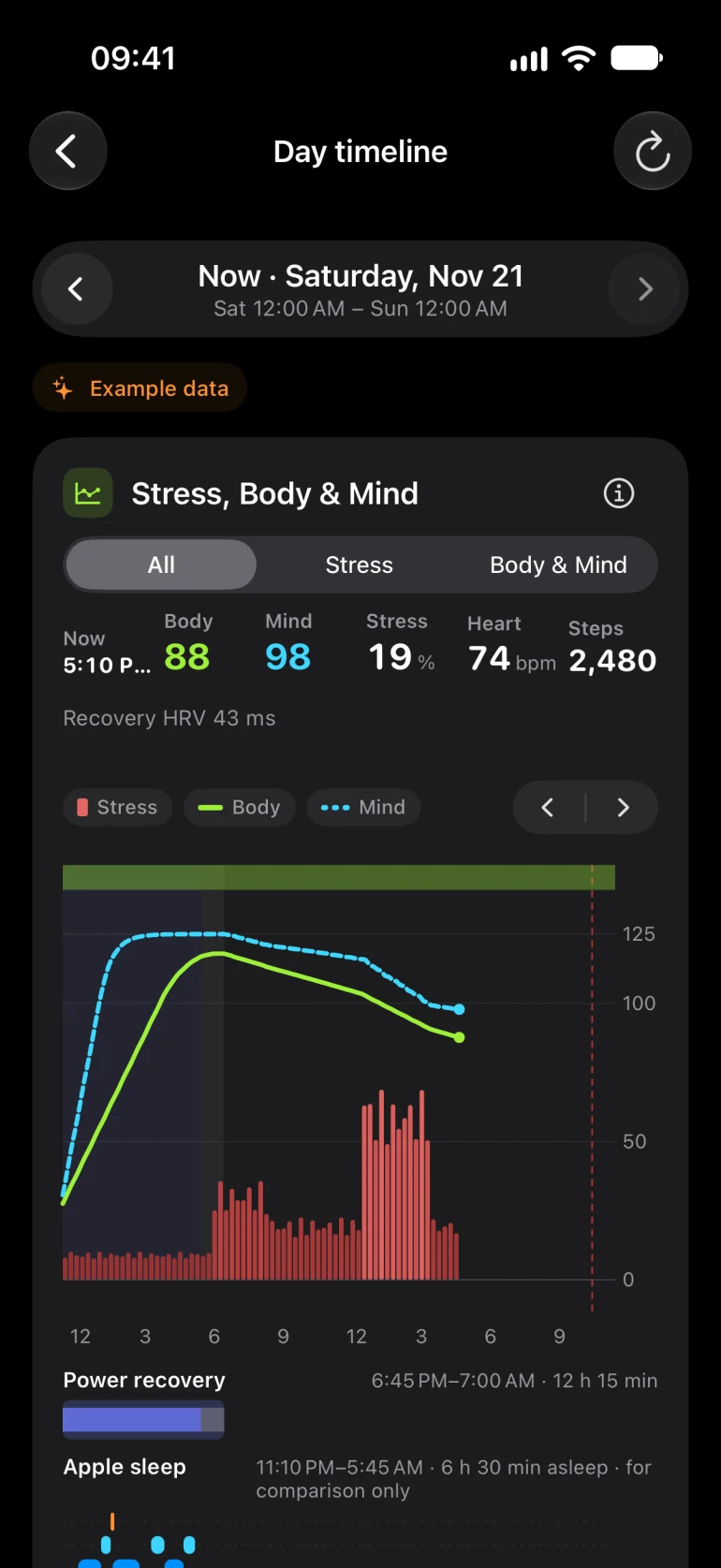
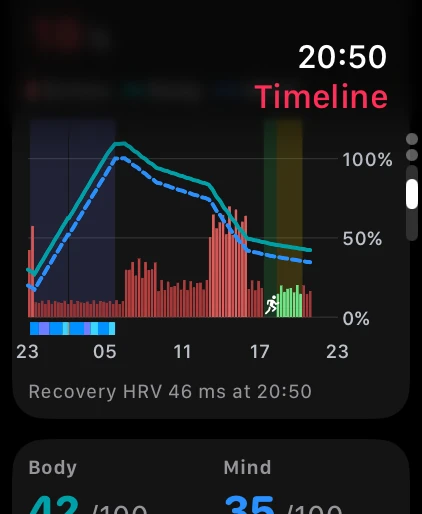
The Day timeline puts Stress bars and Body and Mind lines on the same chart. Use All to see them together, or switch to Stress or Body & Mind to focus on one part. Change the day to revisit a previous workout, a period of recovery or an afternoon when your readings moved away from their usual pattern.
The chart adds sleep and recovery bands, and can mark workouts or relevant logged events. Drag along it on iPhone to see the values at a particular time. The Watch has a chart inspector you can open with a tap. Turn the Digital Crown to explore an earlier or later point without covering the small screen with your finger.
Stress is a physiological estimate based on the signal the app has and your usual readings. Exercise, recovery and the events you’ve logged give it context. A bar is most useful when you can see what happened around it and how the day developed afterwards.
Training form and individual workouts
What the Activity index looks at
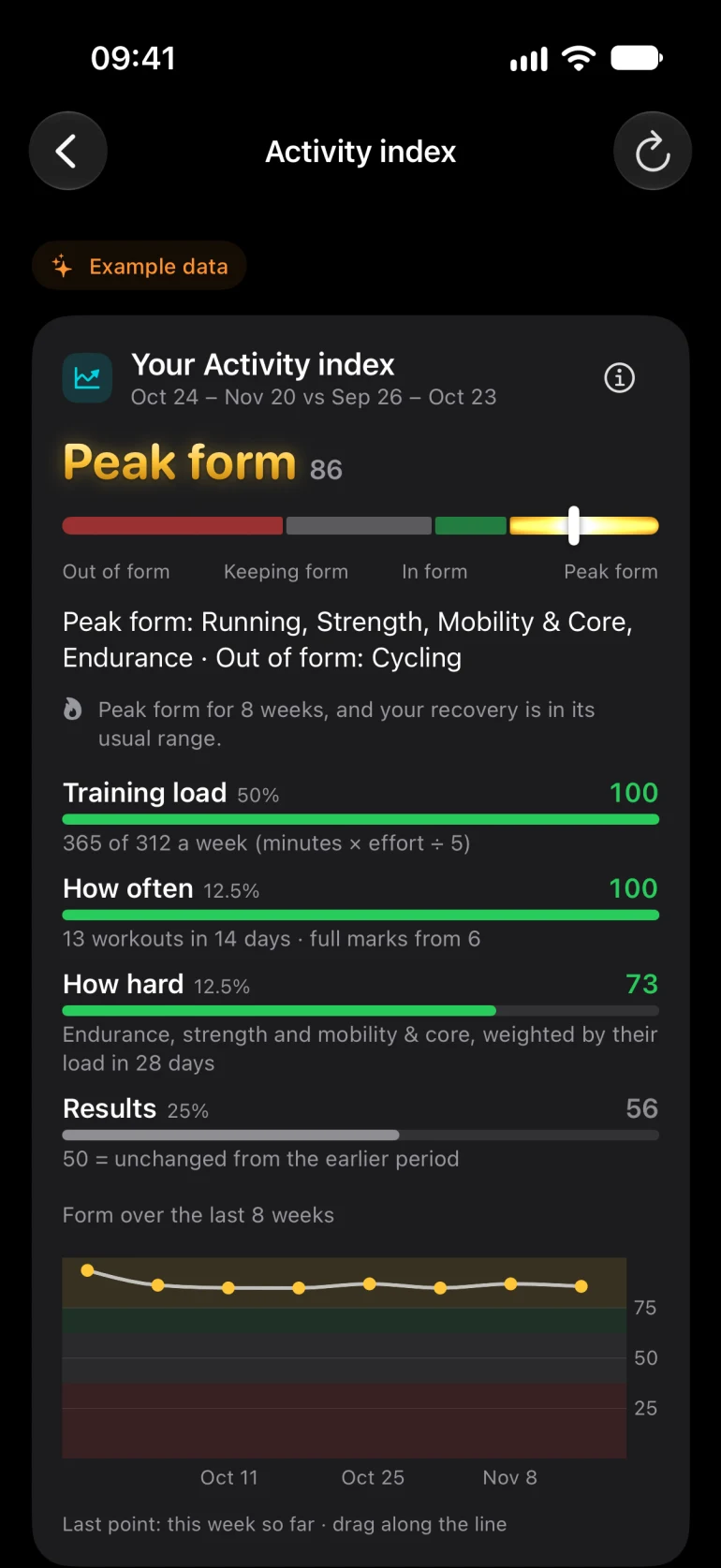
The Activity index shows an overall view plus separate breakdowns for running, cycling, strength and endurance. Start with the overall rating, then open a sport to see which parts of its training are changing. The screen separates the training load you’ve built up from recent frequency, effort and measured results. The form labels help you read the number in plain English. In my Today screenshot, Hält die Form means Keeping form. Other readings can show that form is building or that you’re in peak form, depending on your history.
Available measures depend on how you train and what was recorded. Running and cycling can show trends in pace or output at comparable heart rates, with additional metrics where the Watch or connected equipment supplies them. Running can also show best efforts over familiar distances. Strength can draw on recorded lifts and sets. Workout history from other sources can still appear under Activities. The form calculation focuses on workouts from the current Watch and workouts saved by Poweeer.
What happened during a particular workout
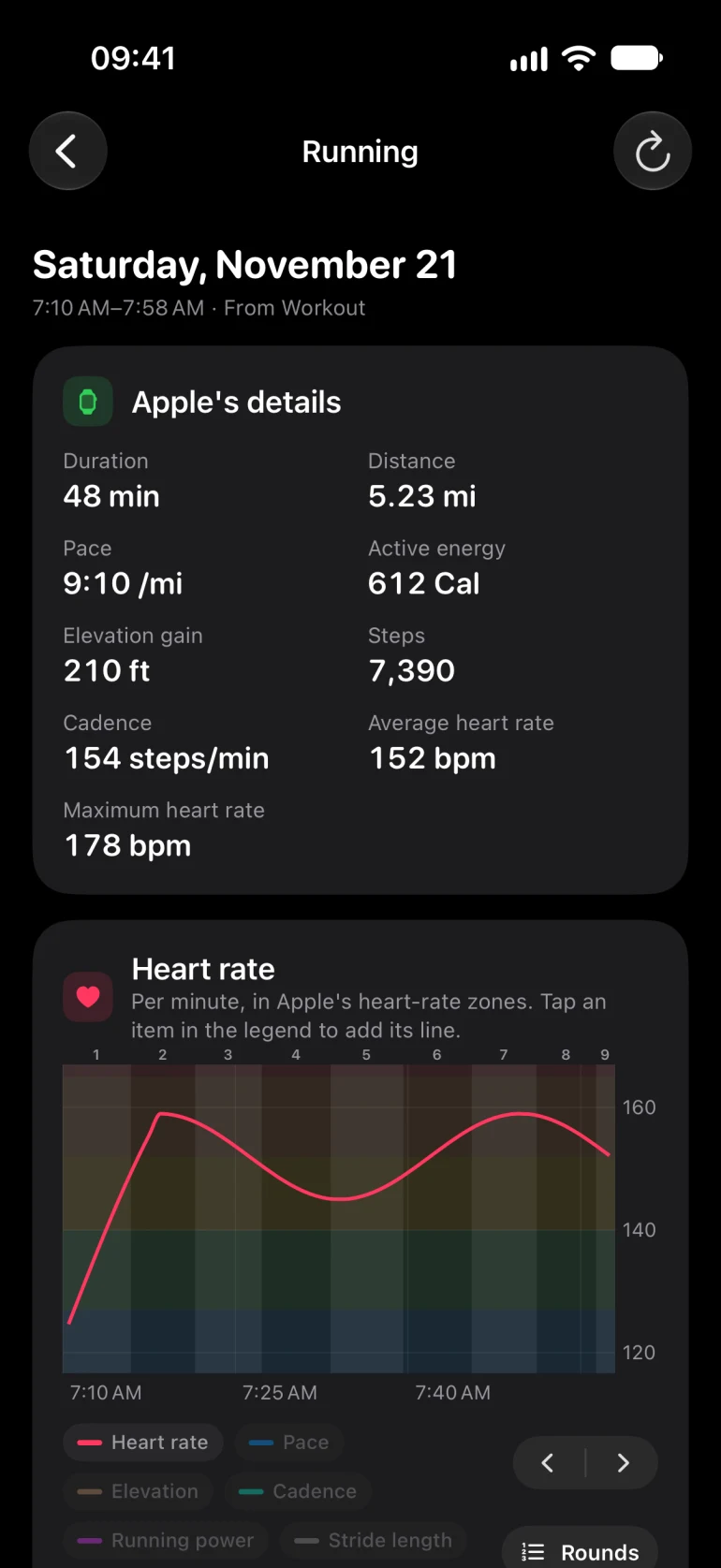
Open Activities and select a session to see the details Apple Health has for that workout. Common examples are duration, distance, pace, elevation, cadence and average or maximum heart rate. For a compatible workout, the heart rate chart shows Apple’s heart rate zones and lets you add overlays such as pace, elevation, cadence or power. If a route was recorded, you can see it on a map.
For activities with kilometre splits, laps or intervals, open Rounds to compare them. Select a row to bring that part into focus on the chart. Poweeer can also show what it observed around the workout and its cool-down, including changes in Body and Mind when there are enough readings. If Poweeer spots sustained movement that overlaps no recorded workout, it can surface it for you to review.
Planning and recording strength training
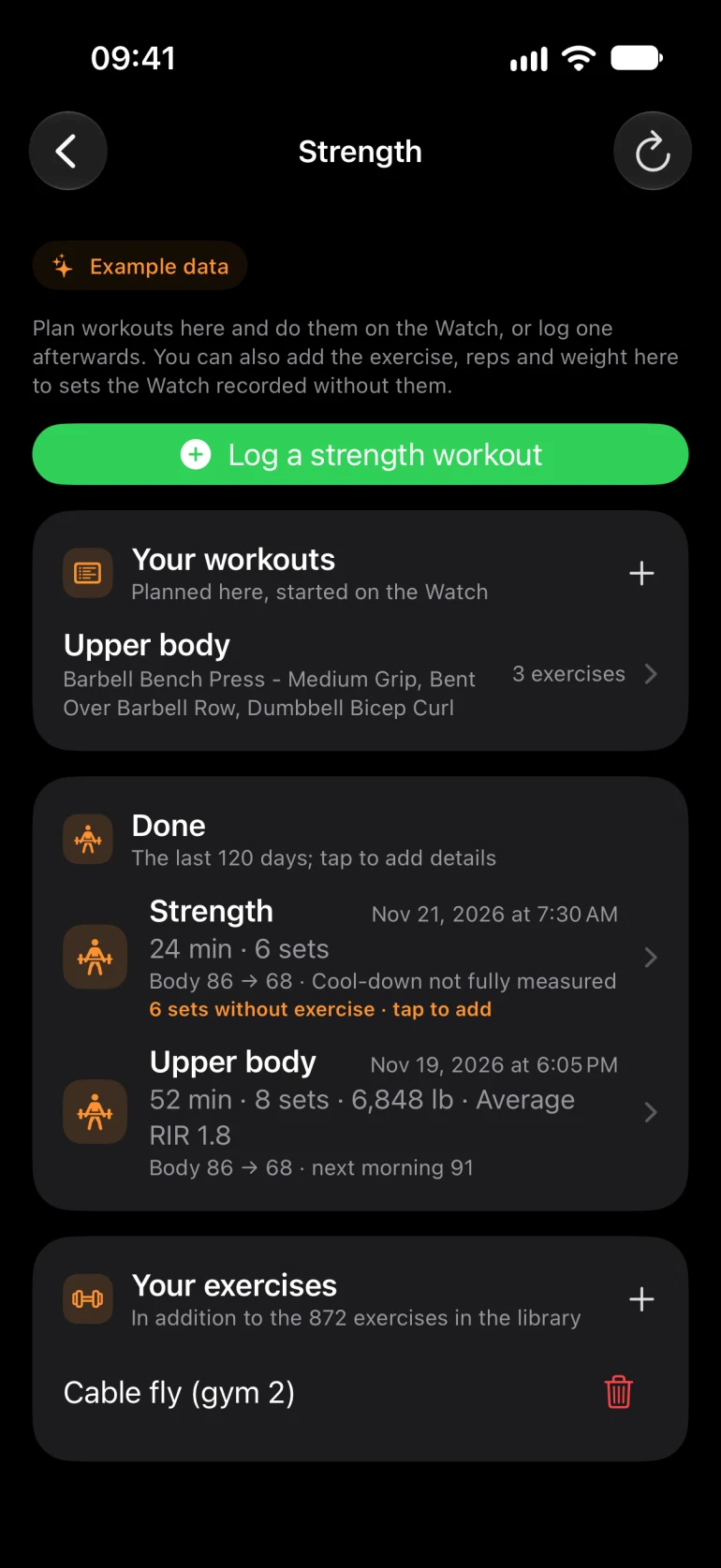
Strength gives you a place to plan workouts, choose exercises and set up reps, weights and rest periods on iPhone. Start a saved session on Apple Watch, or use the log to add a workout afterwards. The exercise library can be extended with your own exercises.
During a session on the Watch, use the Digital Crown to adjust reps or weight, then mark the set complete. You can record how many reps you had in reserve, or skip that step, and use the rest countdown between sets. The history on iPhone lets you revisit the session or supply an exercise name and set details later.
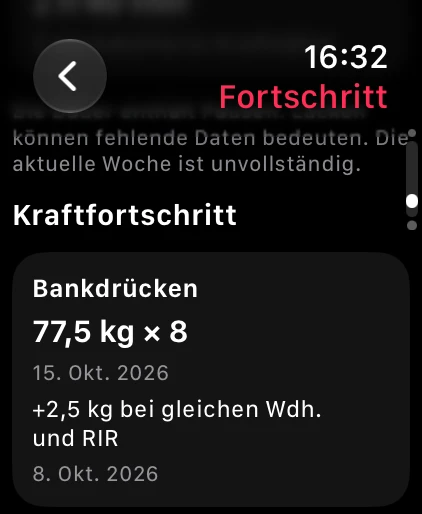
As you build a history, Poweeer can show workload such as total volume and track changes in lift performance when there are suitable sets. Those records help give the strength section of the Activity index some context beyond the length of a workout.
Measurements and personal trends
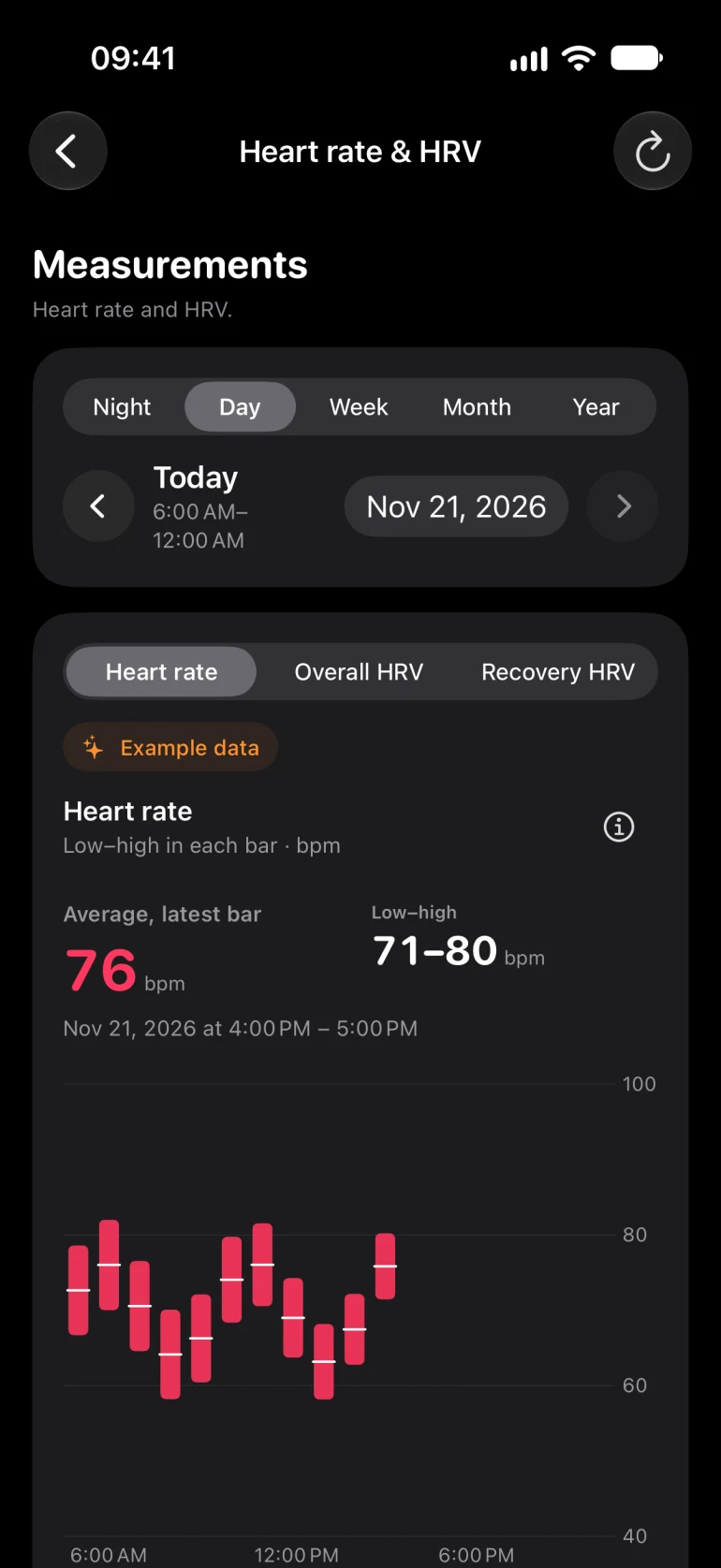
Heart rate variability, or HRV, describes the variation in time between heartbeats. Measurements gives you separate views of heart rate, Overall HRV and Recovery HRV. Overall HRV uses Apple Health’s SDNN readings. Poweeer uses Recovery HRV readings for recovery comparisons and the Stress estimate, with a baseline learned from your own history. Choose a period, then inspect the readings and their range on the chart.
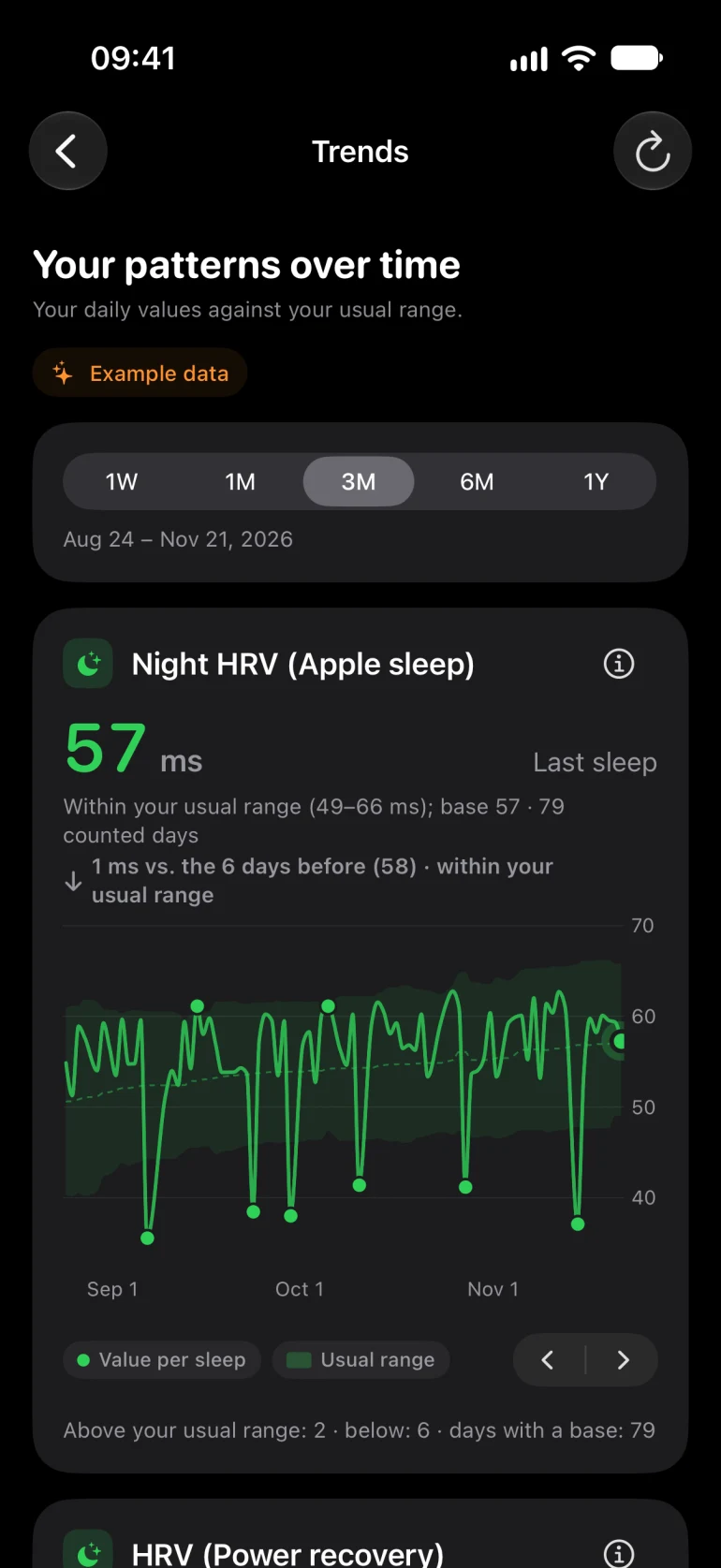
Trends is for questions that take more than one day to answer. Choose a time period and select a point to see the recorded value and its date. Depending on the metric and your data, you can compare it with your usual range. The available trends include resting heart rate, different overnight HRV views, steps and time in very high recovery. Some charts show Apple sleep and Power recovery as separate views so you can keep track of which sleep period the chart uses.
The two views work well together. Trends can show whether a value has been moving for several nights. Measurements can help you look closely at the readings that fed a particular day. The app leaves gaps when there’s no reading for the selected period.
Insights, check-ins and everyday logs
What your days tell you
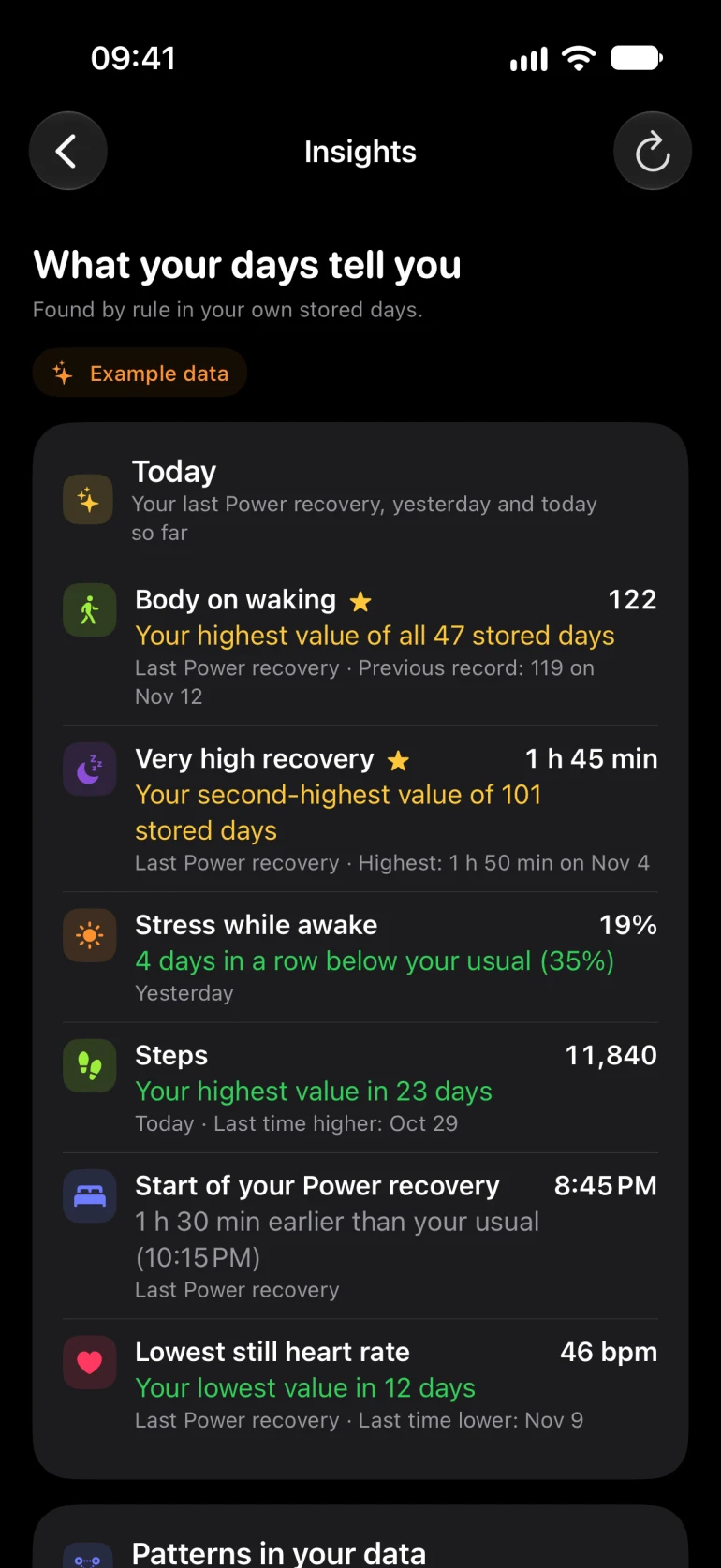
Insights uses stored days to put today alongside your own history. It can call out an unusual result, such as more time in very high recovery or a lower resting heart rate than you’ve seen recently. Over time it can also show patterns involving recovery, training timing or the events you’ve logged. A pattern describes what occurred together in your data, so you can decide whether it deserves a closer look.
When offered a check-in, you can record how your Body and Mind feel. Poweeer stores the rating alongside the model’s estimate for that moment. Open Model vs. you in Settings to review the comparison. Once there are enough check-ins, you can choose to fit the model to your ratings.
Logging what the Watch can’t know
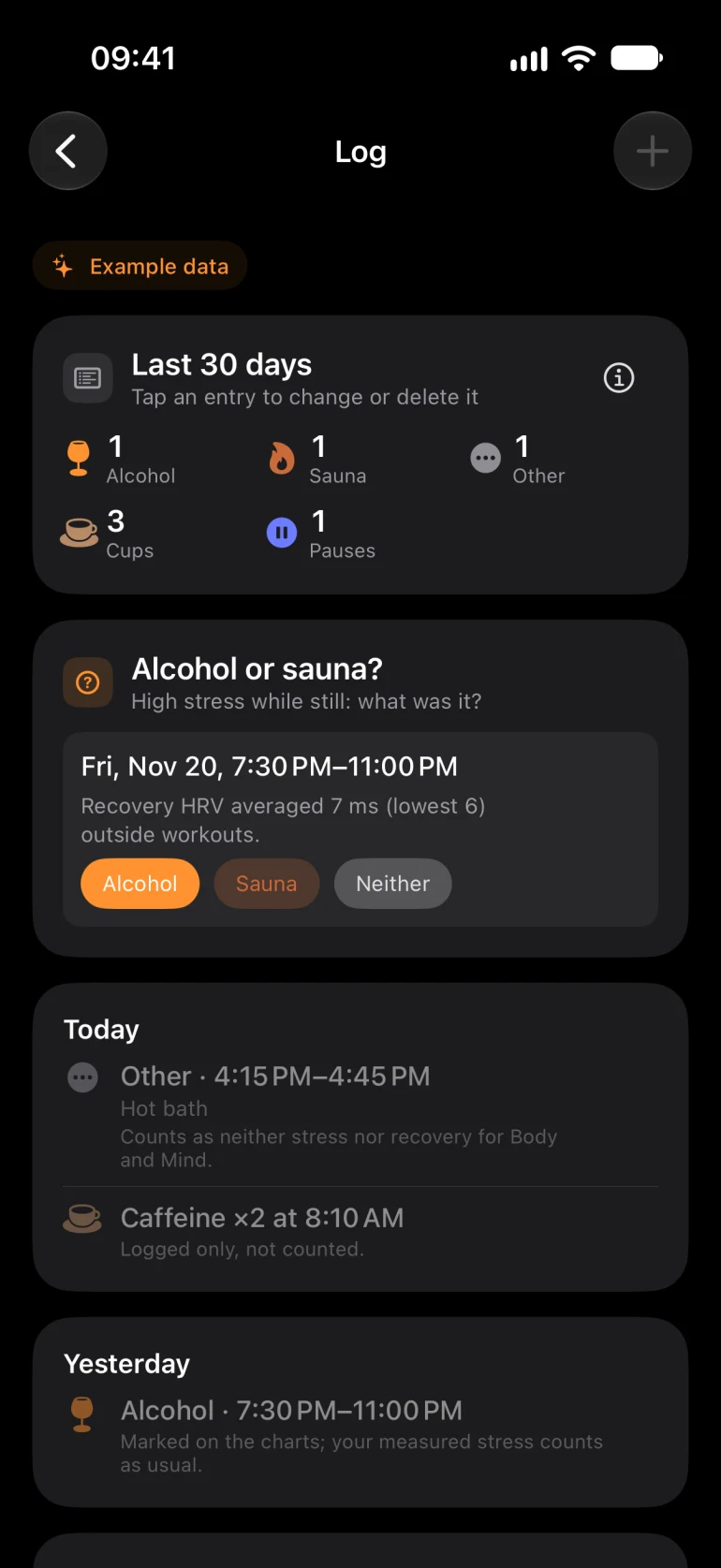
The Log gives you a place to record things such as caffeine, sauna visits and alcohol, with options to review, edit or delete entries. Caffeine is kept as a reference in the log. If you enable suggestions, Poweeer may ask whether a period of unusually low Recovery HRV while you were still and outside a workout was alcohol, sauna or something else. You can confirm or dismiss it yourself before it becomes an entry.
On Apple Watch you can also use quick logging during the day. Optional notifications can alert you after sustained high Stress or when Mind falls below a threshold you select. You can adjust those choices from Poweeer’s Settings.
Apple Watch complications and iPhone widgets
The Watch app brings Today, Recovery, activity, heart readings, trends and the timeline to your wrist. Open a detail when you have time, or add a Poweeer complication to bring a value you check often onto your watch face. Available choices include Power, Activity, Recovery, Body and Mind, Stress and Heart rate. Different watch faces and slots offer different layouts, from a compact inline reading to rings or a wider summary.
Complications use the last confirmed values. If Poweeer can’t confirm an update for 40 minutes, the Watch complication dims those readings. At 75 minutes it replaces them with placeholders. Opening the app gives you access to the update status and details when you want more context.
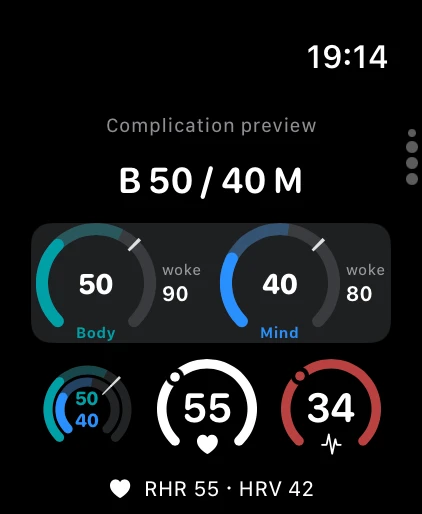
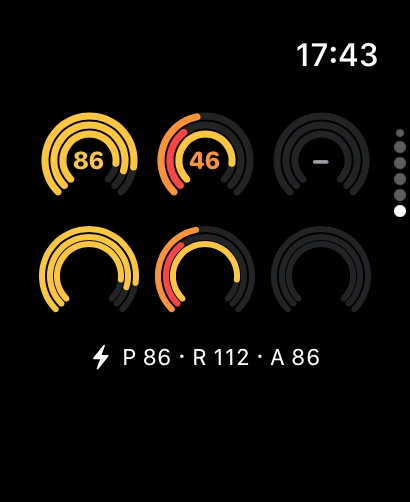
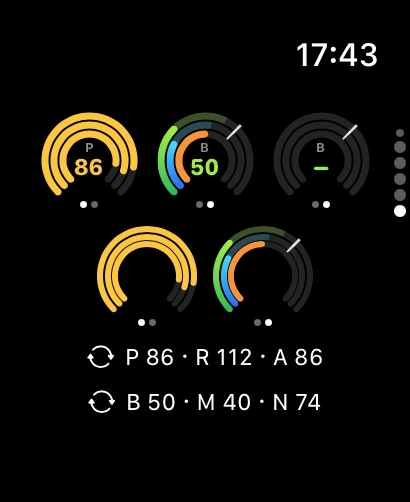
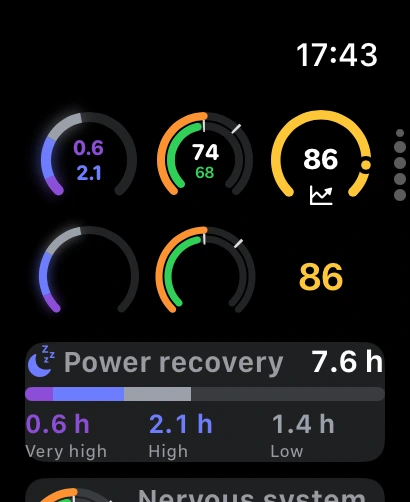
To add one to a supported face, touch and hold the watch face, tap Edit and swipe to the complications screen. Choose a slot and look for Poweeer in the list. The examples show layouts the app can render. Choices vary with the face and its slots.
On iPhone, Poweeer widgets can bring selected readings to the Home Screen or Lock Screen. They include views for Body and Mind, Stress, Power, Recovery and Activity. Choose a size that fits what you want to see without opening Today.
The current build requires iOS 27 or later and watchOS 27 or later for the companion app. Compatible models include Apple Watch Ultra 2 and Ultra 3. Apple’s watchOS compatibility list has the full set of supported watches.
Privacy, exports and backups
Poweeer works without a Poweeer account. Your iPhone and Watch calculate scores on-device and can exchange records to keep the paired apps up to date. You choose which Apple Health readings to share, and you can revoke access in Apple Health. The Privacy Policy is available from Settings → About Poweeer and on the website.
Under Settings → Export, you can make CSV files for your own analysis. These can include daily values, check-ins alongside the model’s readings, workout and strength data, and Activity index records. The backup controls let you create a file or restore items from a previous backup. When you share an export or backup, you choose where it goes. Those files can contain health or activity information.
For the latest beta status and help getting set up, visit the Poweeer product page. The Poweeer Privacy Policy explains what the app processes and how to manage your data. For the engineering background, see how Poweeer was built.